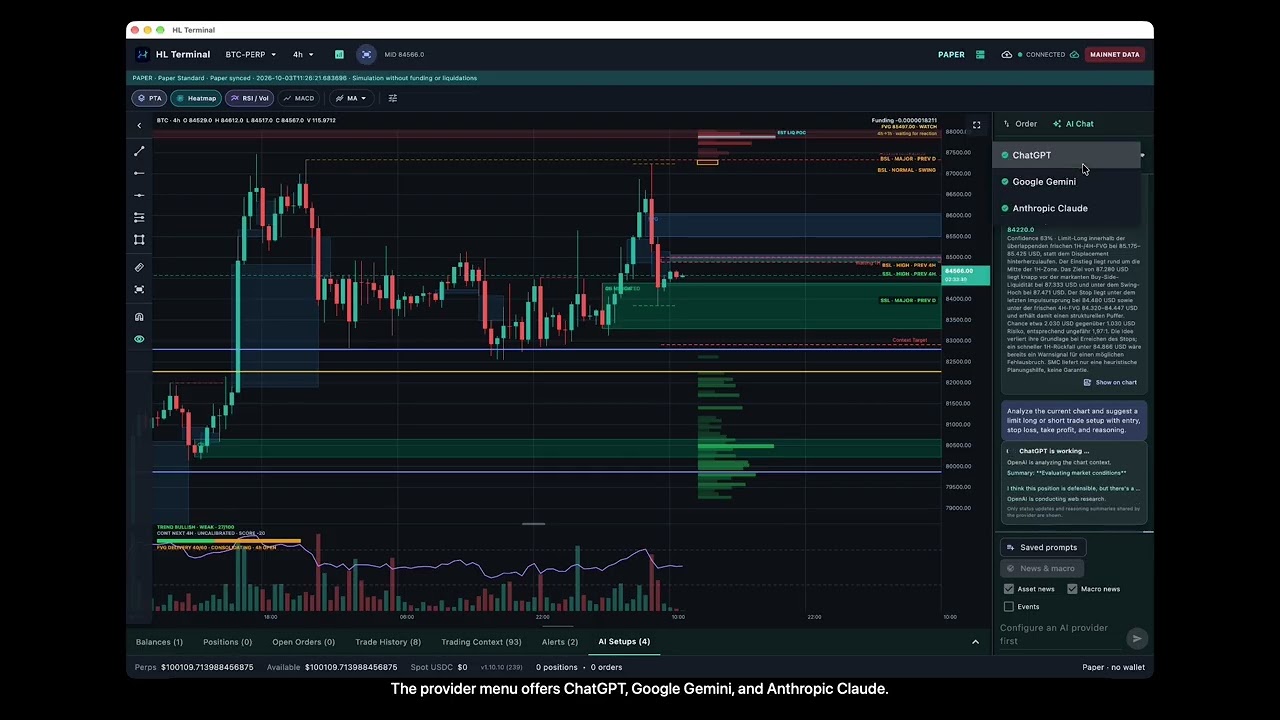
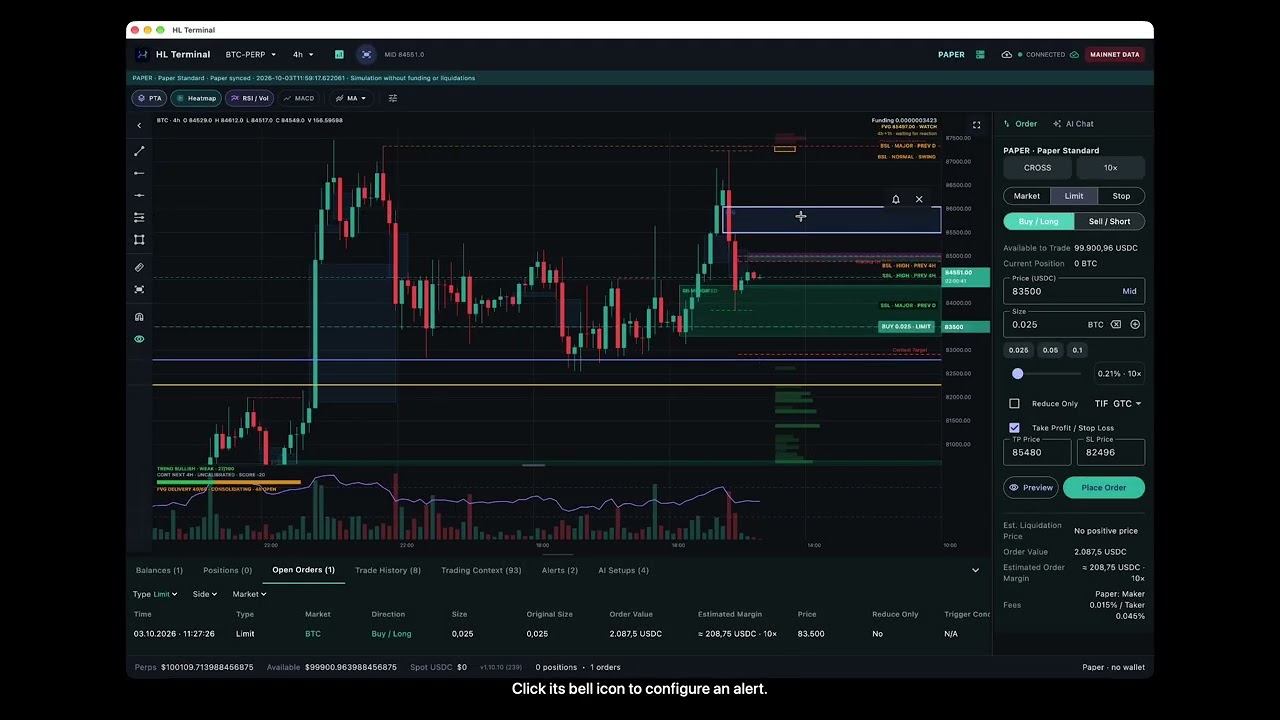
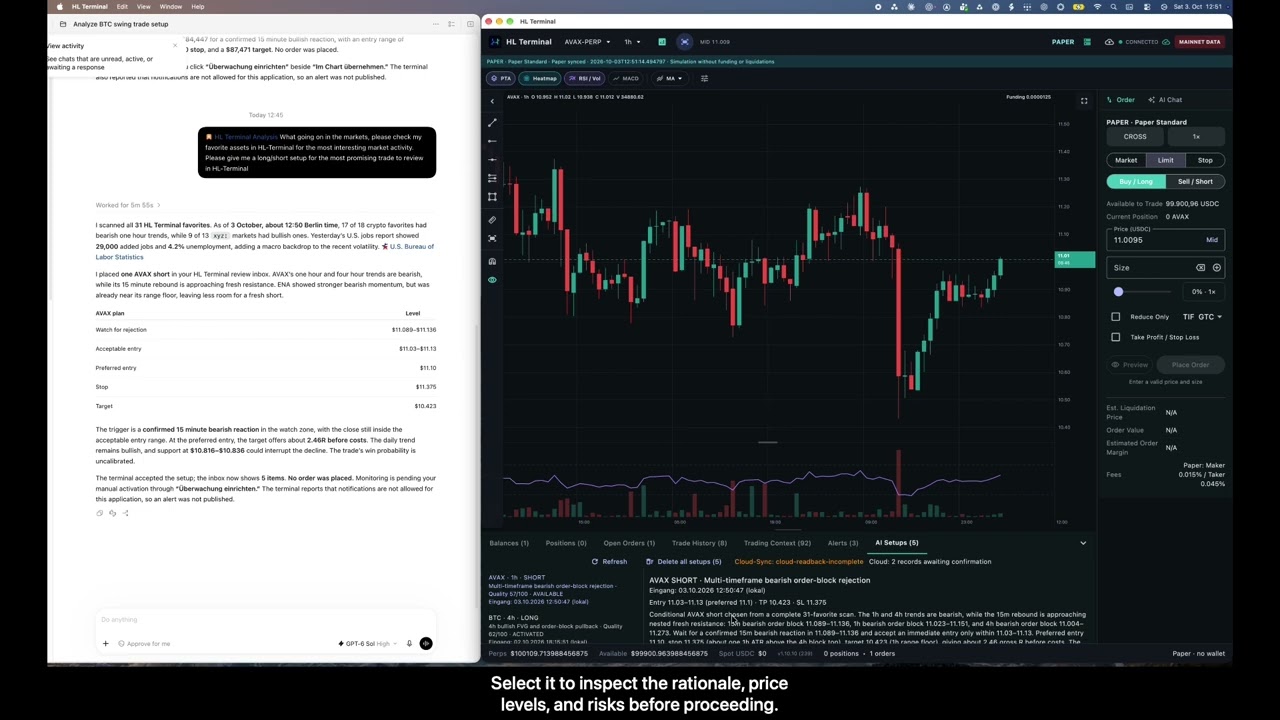
Follow along with practical video walkthroughs. Start with Paper Trading, explore the built-in AI assistant, set up chart alerts and push notifications, or scan your favorite markets with ChatGPT Codex and MCP.
6 video tutorialsEnglish narrationStep by step
01 / GETTING STARTED · WEB
HL Terminal Intro English
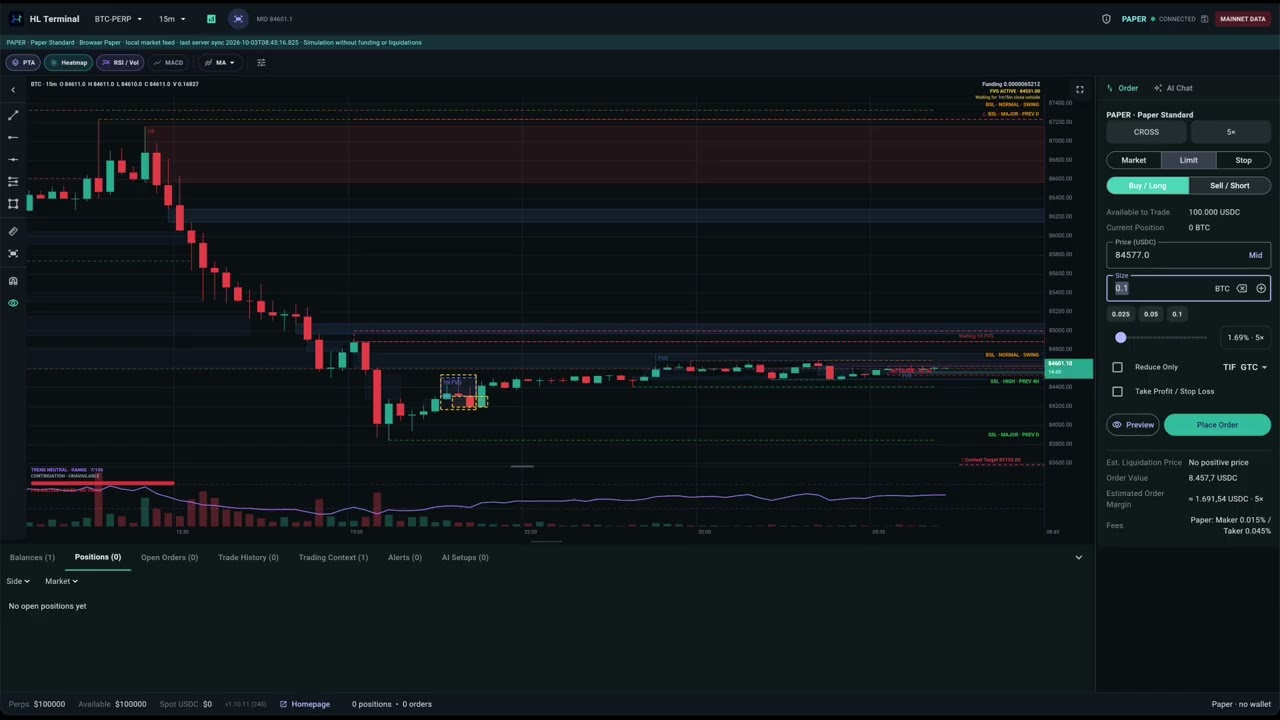
Learn the complete Paper Trading workflow in the browser, from onboarding to placing your first practice order.
Choose Paper Trading and open the Bitcoin chart.
Create and remove size presets, and set leverage.
Build a Long setup from the crosshair menu; adjust entry, take profit and stop loss in the chart and Order view.
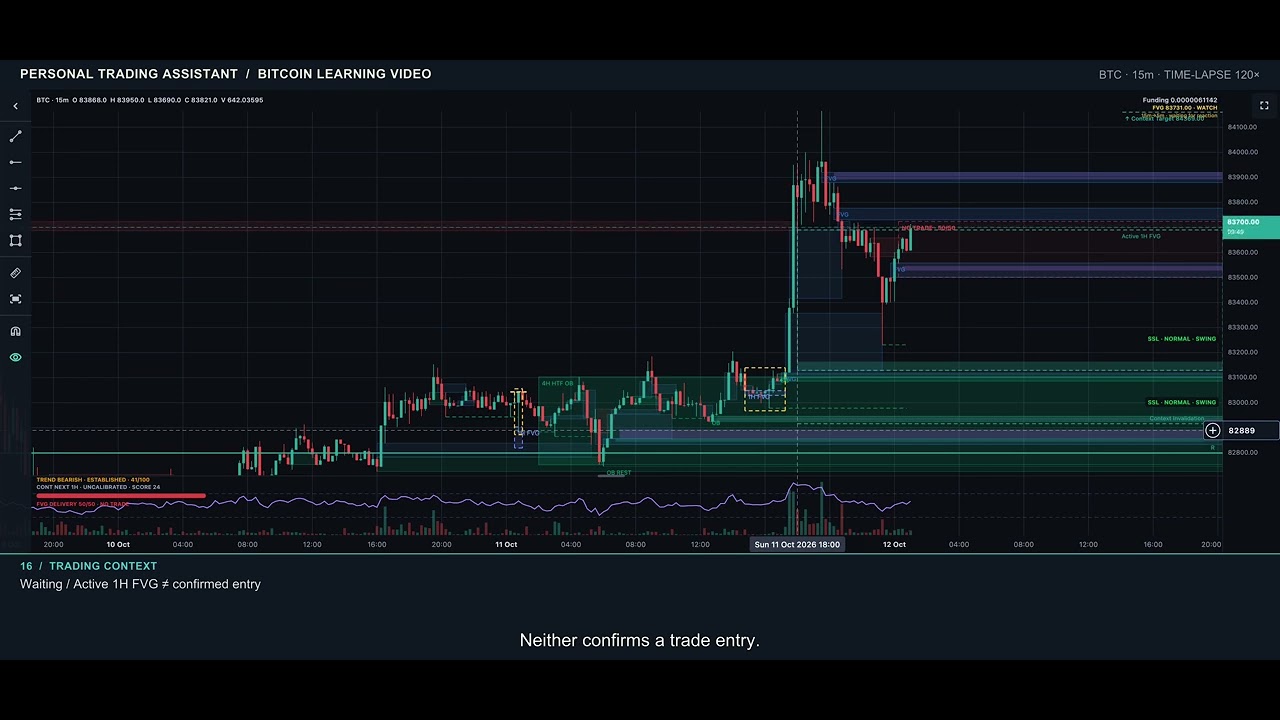
Turn a market session into a timelapse for your trading journal, a setup review or a shared explanation. The recording preserves chart snapshots as they were captured, including visible indicators and annotations.
01
Set up your chart.
Choose your asset and candle interval, then show the indicators and drawings you want to capture. Open the timelapse controls with the timelapse icon in the chart’s side toolbar.
02
Start the recording.
Select Start recording. HL Terminal captures only the chart area. The order ticket, account panels and recording controls stay outside the image. It uses no microphone or screen-sharing permission.
03
Let the setup develop.
Snapshots adapt to recent price movement: every 30 seconds in quiet phases, or every 15, 10 or 5 seconds as movement increases. Pause and resume manually whenever needed. The chart follows the latest candles and keeps the current price in view while recording.
04
Stop, choose a speed and export.
Stop recording, choose 10×, 30×, 60× or 120×, then select Export video. Mac and iPad create an MP4 locally; choose the destination folder before export and follow the progress. In supported browsers, video uses MP4 or WebM. ZIP export contains the PNGs and timestamps for your own editing workflow.
MAC APP
Keep your Mac awake.
The native Mac app continues recording when hidden or minimized. Keep the app running and the Mac awake. Server Mode is not required. Saved recordings remain locally available after an app restart.
IPAD APP
Keep the chart in the foreground.
Keep the iPad awake and unlocked with HL Terminal visible. Switching apps or locking the screen pauses recording; resume manually after returning. Native recordings are saved locally. Chart Recording is unavailable on iPhone.
WEB BROWSER
Export before closing the tab.
Keep the chart tab visible and your device awake during recording and video export. The browser holds one session in memory; reloading or closing loses it. Video depends on browser codec support; ZIP export remains available.
What is saved, and where?
Chart capture and export happen locally, without uploading the recording. Mac and iPad keep PNGs and timing data on the device; use Saved recordings to export a previous session or delete it. Recordings do not sync through iCloud. Visible chart labels and drawings are included, so check the exported images before sharing.
What can pause or stop a recording?
Changing the asset, candle interval or network ends the session. Resizing the chart pauses it and requires a new recording with fixed dimensions. Disconnected or stale market data produces no new frames. A native session stops at 2 GiB of PNGs; the browser session is capped at 128 MiB. Allow extra space for exports.
How should I read the timelapse?
This is a sequence of live snapshots, not a historical replay or a tick-by-tick video. Moves between frames are not captured. Export timing follows the actual capture timestamps at your chosen speed, including gaps. Use it to review the observed sequence; it does not prove why price reacted to a zone.